Home → Cataloging Items/Copies and Holdings → Customized Item Messages → Item Notes
7.4. Item Notes
Last Updated 01/02/2026
Fully Customizable Item Notes
On This Page
Item notes allow libraries to attach local holdings information to their copies of titles outside the shared record. While public notes appear in the OPAC, they are not searchable, and the number of visible notes should be limited to enhance catalog usability. Notes can be added or edited in the Holdings Editor or Holdings View tab.
Item notes are free text fields that include a note title, note content, and checkbox to indicate whether a note is public. Public notes are visible in the OPAC, but not searchable. Neither item note titles nor item note contents are controlled, and there is no administrative interface to control notes.
Note: NC Cardinal recommends limiting the number of notes made public to avoid impacting the public catalog. Only Notes that are helpful for patrons should be made visible, and they should be limited in length.
Adding Notes to Items
Notes can be added or edited from the Holdings Editor, or directly from the holdings view tab.
From the Holdings Editor
Item notes can be added to existing items or to new items as they are cataloged. To add an item note in the holdings editor:
-
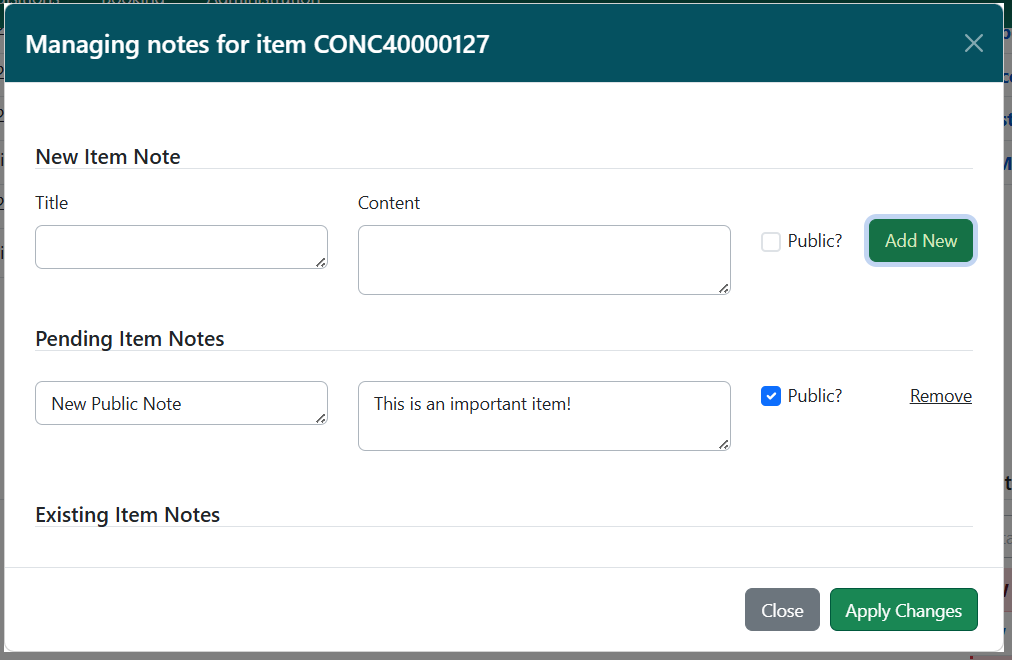
In the Holdings Editor, select Edit Item Notes. This will open a modal named Managing notes for item.
- Enter a title and content for your note. Select the Public? checkbox if you want the note to be visible in the OPAC.
- Select Add New. The new note will appear below, under a heading labeled Pending Item Notes.
- Repeat this as needed to add other notes. Notes will remain pending until the item is saved in step #6.
- You can edit or remove notes before saving. Text entries for note title and content can be edited directly in their respective fields, and you can also change the Public checkbox selection. To remove a note, select Remove on the right side of the note’s line.
- Once you have added your notes and done any other notes work, select Apply Changes. The modal will close.
- Proceed with the rest of your edits to the item, and then select either Apply All & Save or Apply All, Save & Exit to finish your edits.
From the Holdings View
- In the bibliographic record, click on the Holdings View tab.
- Scope to your library. Make sure you have the boxes for Show Call Numbers and Show copies checked.
- Locate the copy to which you want to add the note. You can only add notes at the copy (barcode) level, not the call number. Check the box to select it.
- Select Item Note from the Add section ofthe Actions menu.
- A modal will pop up. Proceed to create a note following the same steps as outlined above.
Note: You can add the same note to multiple copies by selecting each barcode from the holdings view grid, then adding the note just once.
Editing Item Notes
Note titles and content are free text, and can be edited.
-
In the Holdings Editor or the Holdings View tab, select Edit Item Notes from the Actions Menu. This will open a modal named Managing notes for item.
-
Make your desired edits to the note title, content, and public checkbox.
-
Once you have finished, select Apply Changes. The modal will close.
Removing Item Notes from Items
To remove an item note from a item:
-
In the Holdings Editor or the Holdings View tab, select Edit Item Notes from the Actions Menu. This will open a modal named Managing notes for item.
-
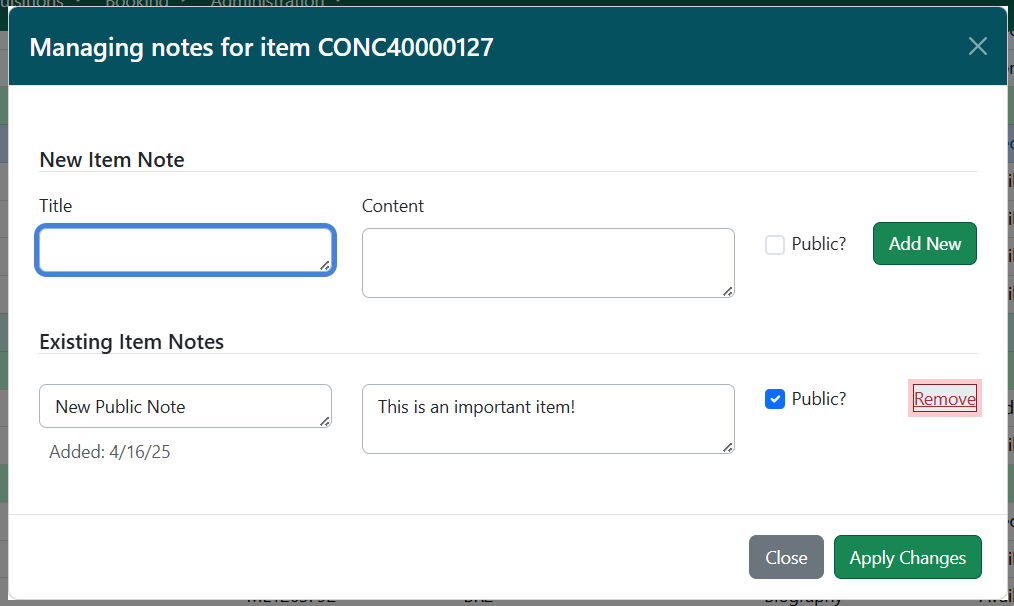
Select Remove on the right side of the note for the note(s) you want to remove.
-
You can also Undelete a removed note before you close the modal. To do this, select Undelete on the right side of the appropriate note.
-
Once you have finished, select Apply Changes. The modal will close.
NOTE: Copy level notes are not searchable in the OPAC. Please request a list of items with donation copy notes via help ticket.
This page was: Helpful |
Not Helpful