Home → Cataloging Items/Copies and Holdings → Customized Item Messages → Item Tags
7.2. Item Tags
Last Updated 01/09/2026
Searchable Item Tags
On This Page
Item Tags enable library staff to apply searchable, pre-defined labels to items, serving as a preferable alternative to Item Notes. Currently, NC Cardinal limits Item Tags to Digital Bookplates, requiring a standardized label format for donations.
Item Tags allow staff to apply custom, pre-defined labels or tags to items. Alternatively, a library may wish to use an Item Tag instead of an Item Note, because unlike Item Notes, Item Tags are searchable within the catalog.
In order to keep the OPAC from getting too cluttered with additional text or information under each individual item, it is preferred that you use these sparingly and try to limit the number of characters as much as possible.
- NC Cardinal is currently limiting the "Type" of Item Tag to Digital Bookplates as these are already in use by some libraries.
- Create a standardized list of labels to apply uniformly to your Item Tags. For example, for all donations in memory of an individual or group, you might create the label "Donated by [insert name here] in memory of [insert name here]." You would then use that same template for all subsequent in kind donations.
- Limit the number of characters in your label/s to no more than 30, including spaces,not including donor names which may be lengthy.
Searching for Tags
You must request to make tags searchable at your library before using this feature. Submit a Help Ticket to make this request.
To search by Item Tags in your library's OPAC:
- Select Digital Bookplate in the Type dropdown menu in the catalog.
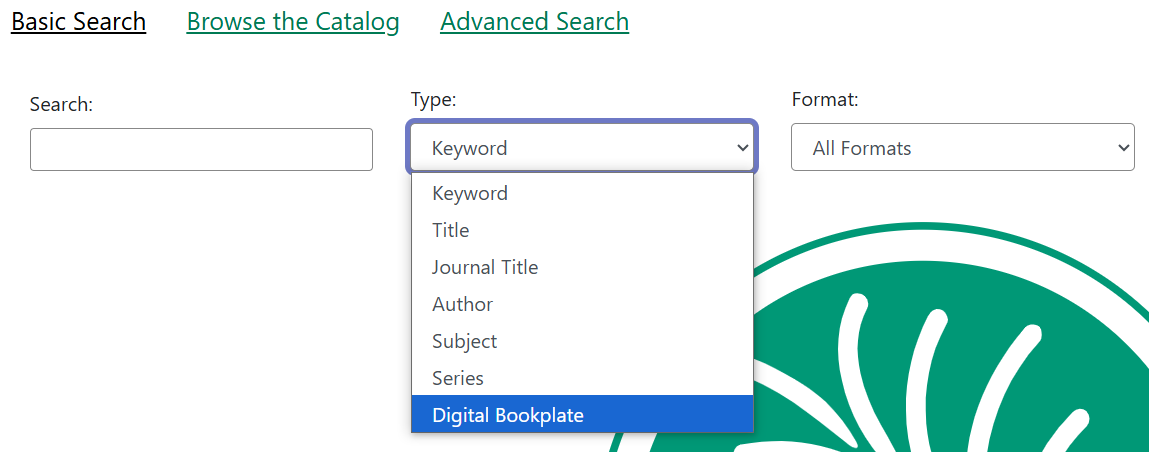
- Input a keyword related to the bookplate label or text (i.e. the name of the donor).
- Search as normal.
Advanced Search Options
- Construct a search using the following syntax: copy_tag(item tag type code, search term)
-
- For example: copy_tag(bookplate, friends of the library)
- Conduct a wildcard search across all item tag types: copy_tag(*, smith)
Adding Existing Item Tags to Items
Item Tags can be added to existing items or to new items as they are cataloged. To add an item tag:
-
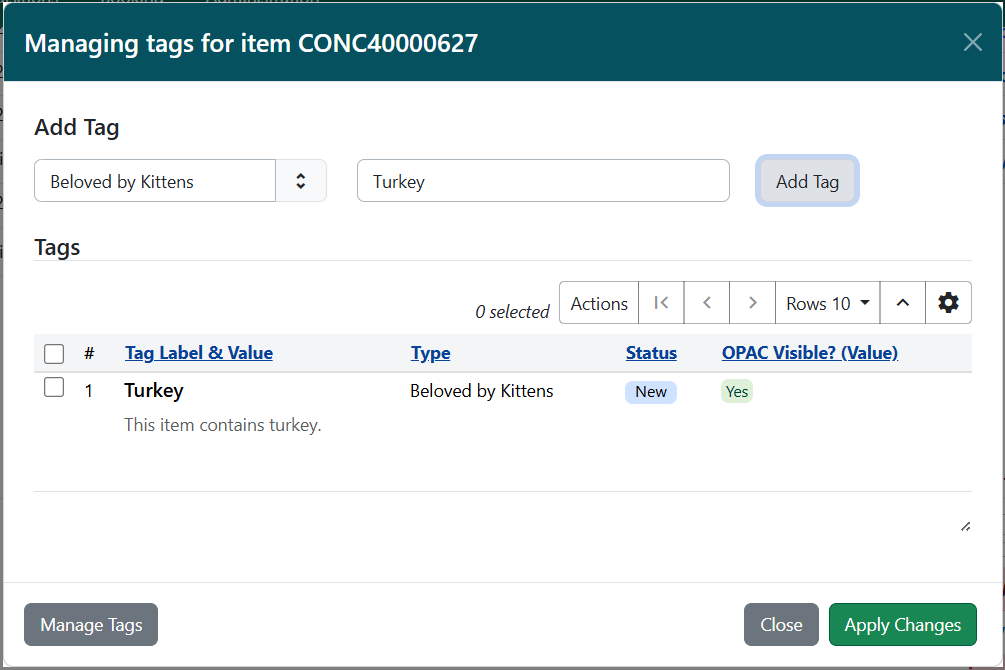
In the Holdings Editor, select Edit Item Tags. This will open a modal named Managing tags for item.
-
Select the Tag Type from the drop down menu and start typing in the Tag field to bring up tag suggestions from the existing item tags. Select the tag and click Add Tag.
-
Repeat this as needed for other tags.
-
Once you have added your tags and done any other tag work, select Apply Changes. The modal will close. To close without saving, select Close.
-
Proceed with the rest of your edits to the item, and then select either Apply All & Save or Apply All, Save & Exit to finish your edits.
For More Information
While Item Catalogers may apply tags in the Holdings Editor, only Bibliographic Catalogers may create new tags. Instructions for this process are available in the Bibliographic Cataloging Knowledge Book.
Removing Applied Tags
- Click on Tags in the Holdings Editor.
- Hover on the tag row of the tag you want to edit. This will to cause the actions for Edit Tag and Remove to appear under the tag in the grid.
- Click Remove. The tag will immediately dissapear.
- Click Apply Changes.
Note: The removale will not be complete until you click the Apply All & Save button in the Holdings Editor.
Editing Existing Tags
Click on will open the tags administrative interface in a new tab) and Remove Tag. + TIP: If you need to perform administrative actions on tags, the Manage Tags button will also open the tags administrative interface in a new tab.
This page was: Helpful |
Not Helpful